# Deciphering Browser Hieroglyphics: LocalStorage (Part 2)
> The second post in "Deciphering Browser Hieroglyphics" discusses LocalStorage and using CyberChef to decode it.
- Author: Ryan Benson
- Published: 2019-08-02
- Tags: Web Browsers, Chrome
- Canonical URL: https://hindsig.ht/blog/deciphering-browser-hieroglyphics-localstorage/
> I spoke about "Deciphering Browser Hieroglyphics" at the SANS DFIR Summit 2017 in Austin, TX. A [recording of most of the talk is available YouTube](https://www.youtube.com/watch?v=LnhSTZgzKuY). I've translated the talk into written form for those who prefer to read (or skim) rather than listen. I've broken it up into parts:
>
> [Part 1: Introduction to Chromotopia](https://hindsig.ht/blog/deciphering-browser-hieroglyphics-intro/)
> [Part 2: LocalStorage & CyberChef](https://hindsig.ht/blog/deciphering-browser-hieroglyphics-localstorage/)
> [Part 3: LevelDB and Chrome's FileSystem](https://hindsig.ht/blog/deciphering-browser-hieroglyphics-leveldb-filesystem/)
## Part 2: LocalStorage & CyberChef
LocalStorage is like the HTML5 version of cookies. It has greater capacity than the older cookies but it's the same idea: you have keys and values that you store. The way it works is that there is a SQLite database for each website visited that is using LocalStorage.
### Pinterest LocalStorage
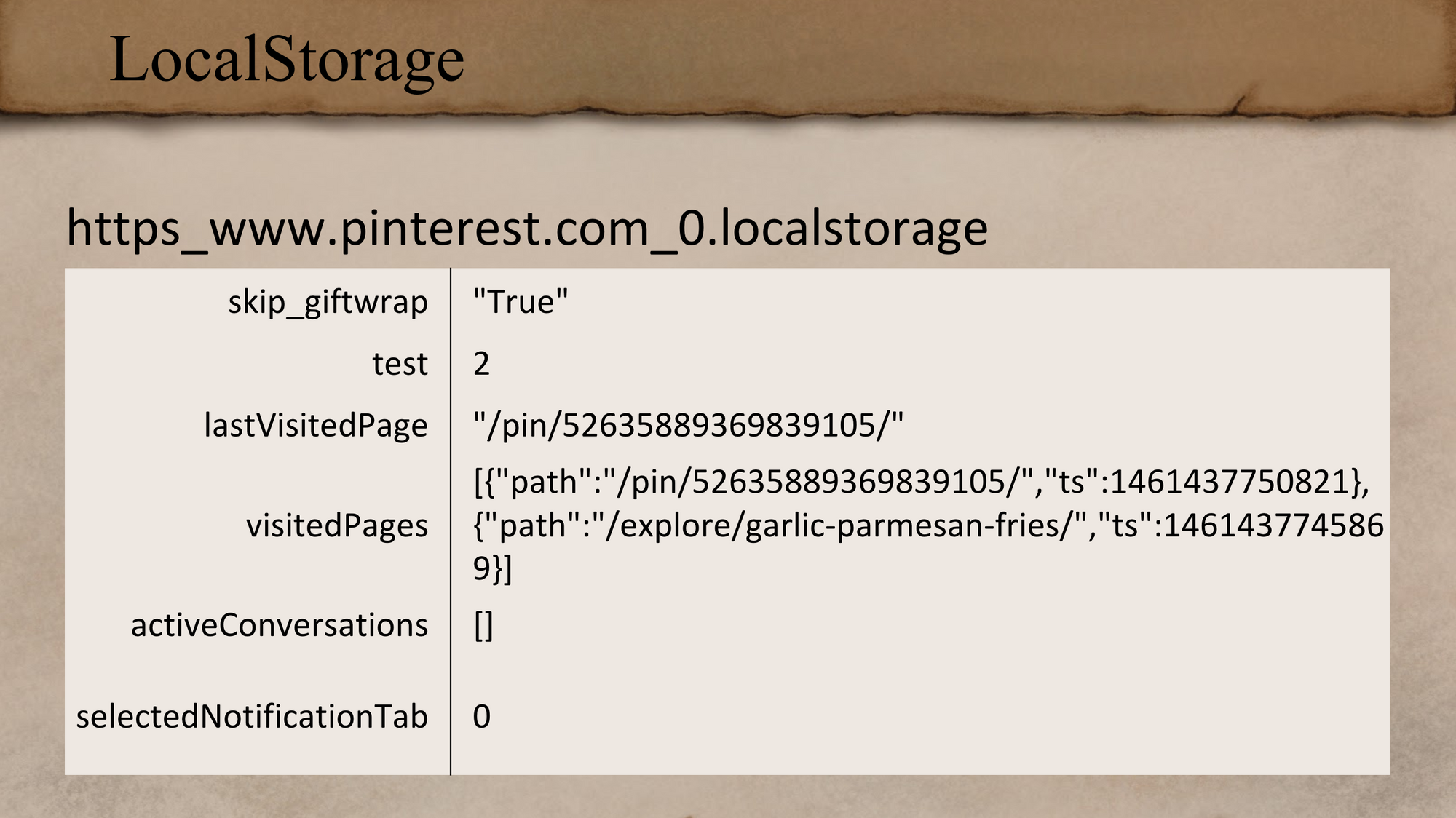
Let’s take Pinterest, for example. The name of LocalStorage file is the website + the extension _.localstorage_, but it's actually a SQLite database. Inside you can see the data and it is similar to the older cookies: a boolean value, some integers, and a JSON-looking string. There’s some interesting stuff in there; it looks like there's a timestamp and there's a path to some page you might have looked at. Nothing groundbreaking, but it might be useful to your case. I definitely suggest you look in LocalStorage as a part of your investigations.
LocalStorage items for Pinterest
### MSNBC LocalStorage
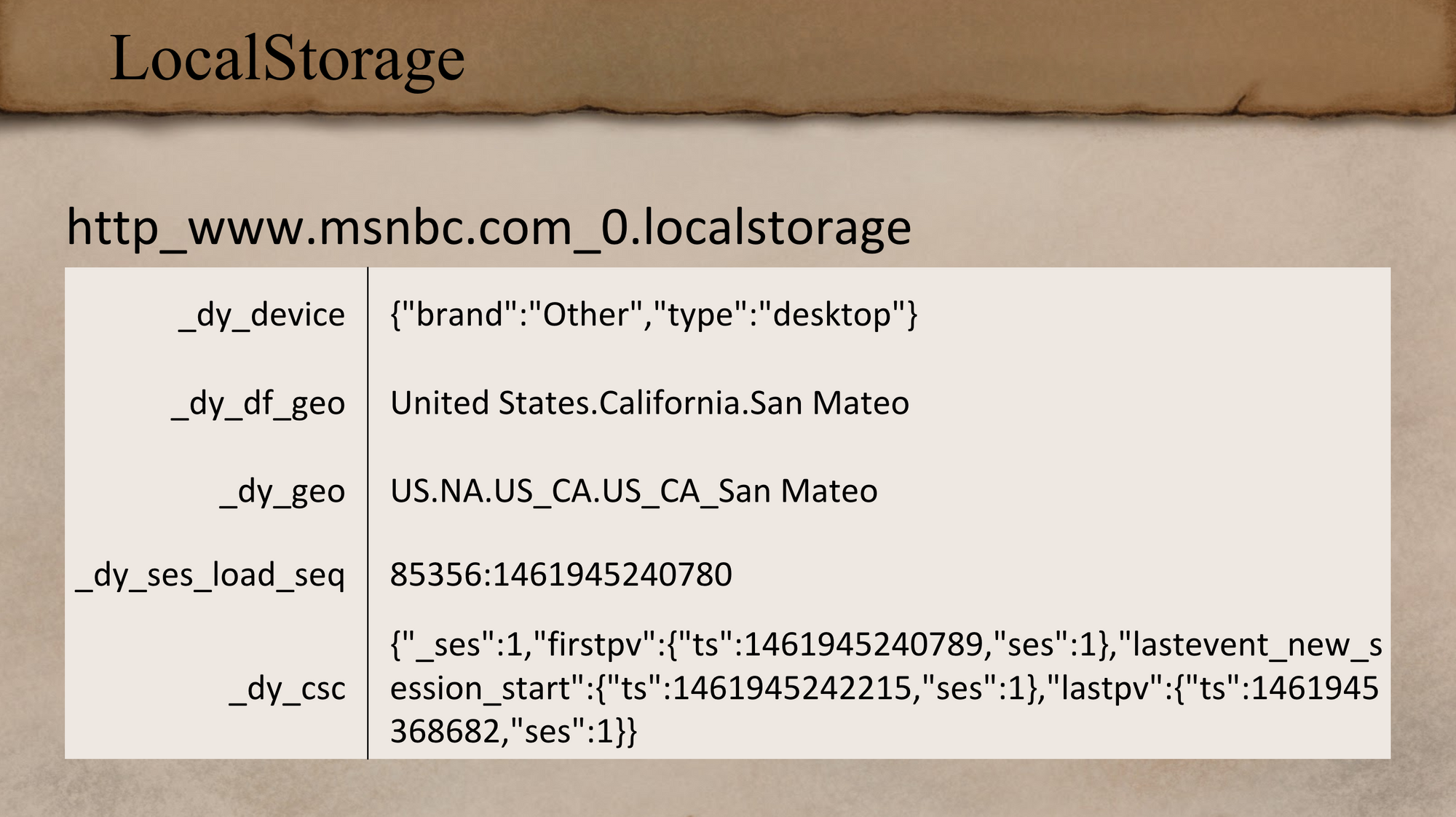
Next is a news site and the data is getting a little more interesting. It looks like there are indications of what kind of computer the user was using. It also looks like there is some geolocation information; this might be relevant to your case if it's about device that moved around a lot. We also have more timestamps.
LocalStorage for MSNBC: Some geolocation info and timestamps
There's some pretty good stuff in LocalStorage and it’s all makes sense so far... and then we get to this:
### Slack LocalStorage
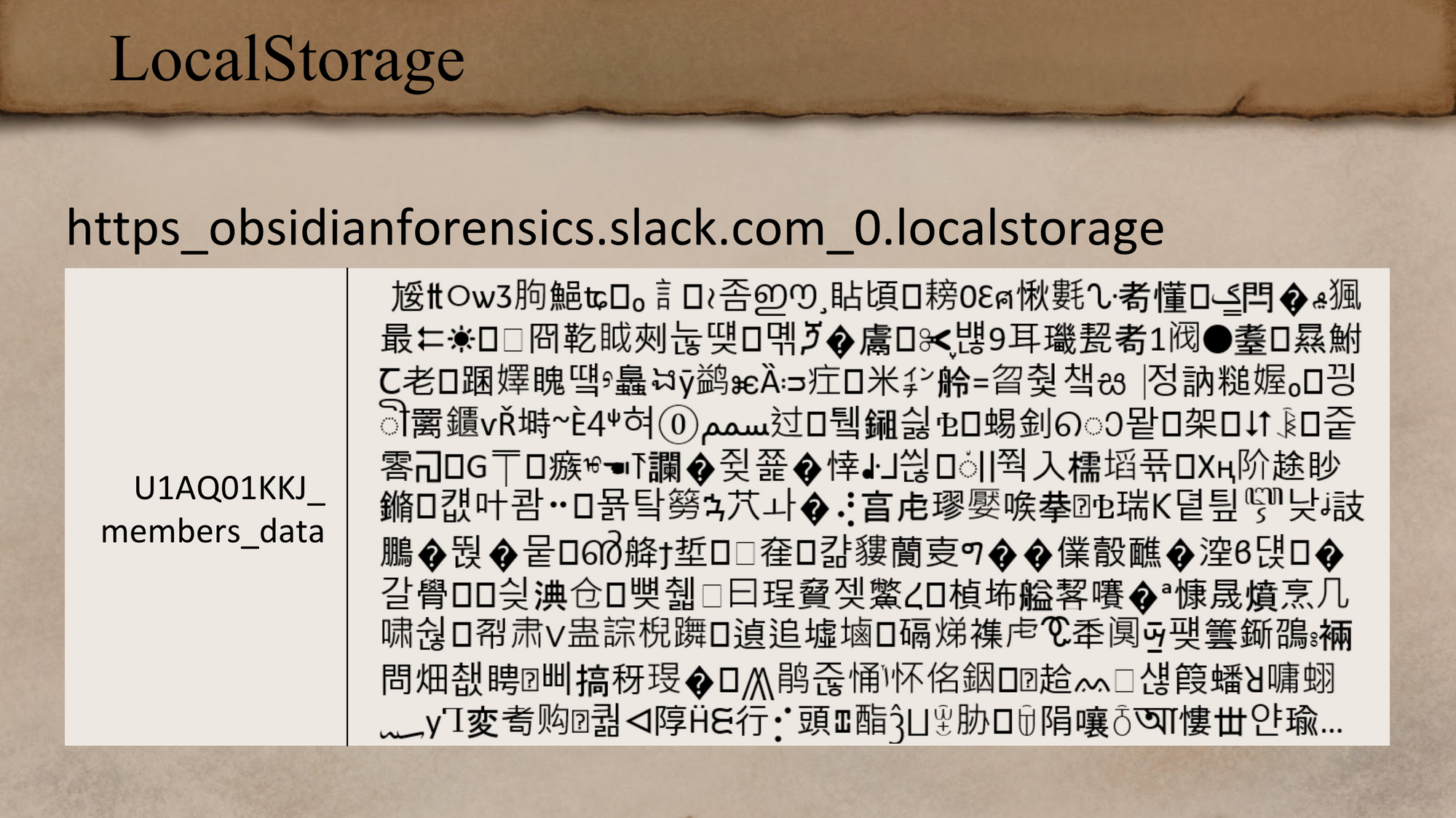
LocalStorage for Slack: Just, what?
How do you make sense of this? It turns out that is from Slack, the messaging program. I really doubt this is meant to be read literally. There's a bunch of Asian language characters mixed in with a pair of scissors and a bunch of unprintable characters. I even found literal Egyptian hieroglyphs in this too - that's kind of how this talk got its name. **Finding actual hieroglyphs in my browser history was definitely a first for me.** This isn't the only item in Slack’s LocalStorage; there's a bunch of different keys. This one is the members data, but there were about 20 more keys.
### Finding My Own Rosetta Stone
Let’s switch back to Egypt for a minute. There were a bunch of soldiers working on some fortifications around a fort outside the city of Rosetta and they found this 1700-pound rock with a bunch of stuff written on it. The scholars were ecstatic because they suspected it had the same thing written on it in three different languages. The top one was hieroglyphs; the middle one was an older script called Demotic; and bottom one was ancient Greek. They knew how to read ancient Greek, so they thought that this was the key to everything. It was a little more complicated than that, but the Rosetta Stone did end up being pretty important for deciphering hieroglyphs. I wanted my own ‘Rosetta Stone’ - a crib sheet that tells me how to translate things sounds pretty useful. So I went out and actually found one!
If you are familiar with Slack, you know you can get to it through a web interface or you can use a desktop application. Slack is built using the Electron framework, which is basically a bundled Chromium browser. If you look at the data behind Slack on the desktop it looks a lot like Chrome. I’m thinking, cool, I should know how to read this.
I looked and I pulled mine open and I found the same data keys, like _members\_data_ and whatnot - but the actual data was a nice easy-to-read JSON! I’m thinking alright, this is this is how it's supposed to be. I can read this and there's actually some pretty good information in there. For example, I’ve been showing the _members\_data_ key, but there was another key called _channel\_messages_ - which was all the chat messages (like you'd expect). Unfortunately, that one has gone away in the last few months, but if you encounter an older Slack version you still might find it. So now I have what it's supposed to look like, and this is what it looks like on the Internet. Then there's this one other key in the web version that wasn't made up of these mangled glyphs, and it was called _is\_compressed_. So the desktop version had _is\_compressed_ set to _no_, and the website version had _is\_compressed_ set to _yes_ - this is called a clue.
This is obviously some kind of compression, but what kind of compression is this? I've never seen anything that looks like this before. I ran it through all the normal decompression things I could think of and nothing really worked. So I turned to something that the Europeans in 1700 didn't have: Google. I started looking around for what else was out there and I eventually started searching for LocalStorage-specific compression things. LocalStorage is really generous; you get about 5M of space, versus HTTP cookies which is 4K. That's quite a bit, but I found a lot of people who were pretty disappointed with that and wanted more storage. There's actually a lot of ways to compress data in LocalStorage, and I eventually found **lz-string**.
### LZ-String JavaScript Compression
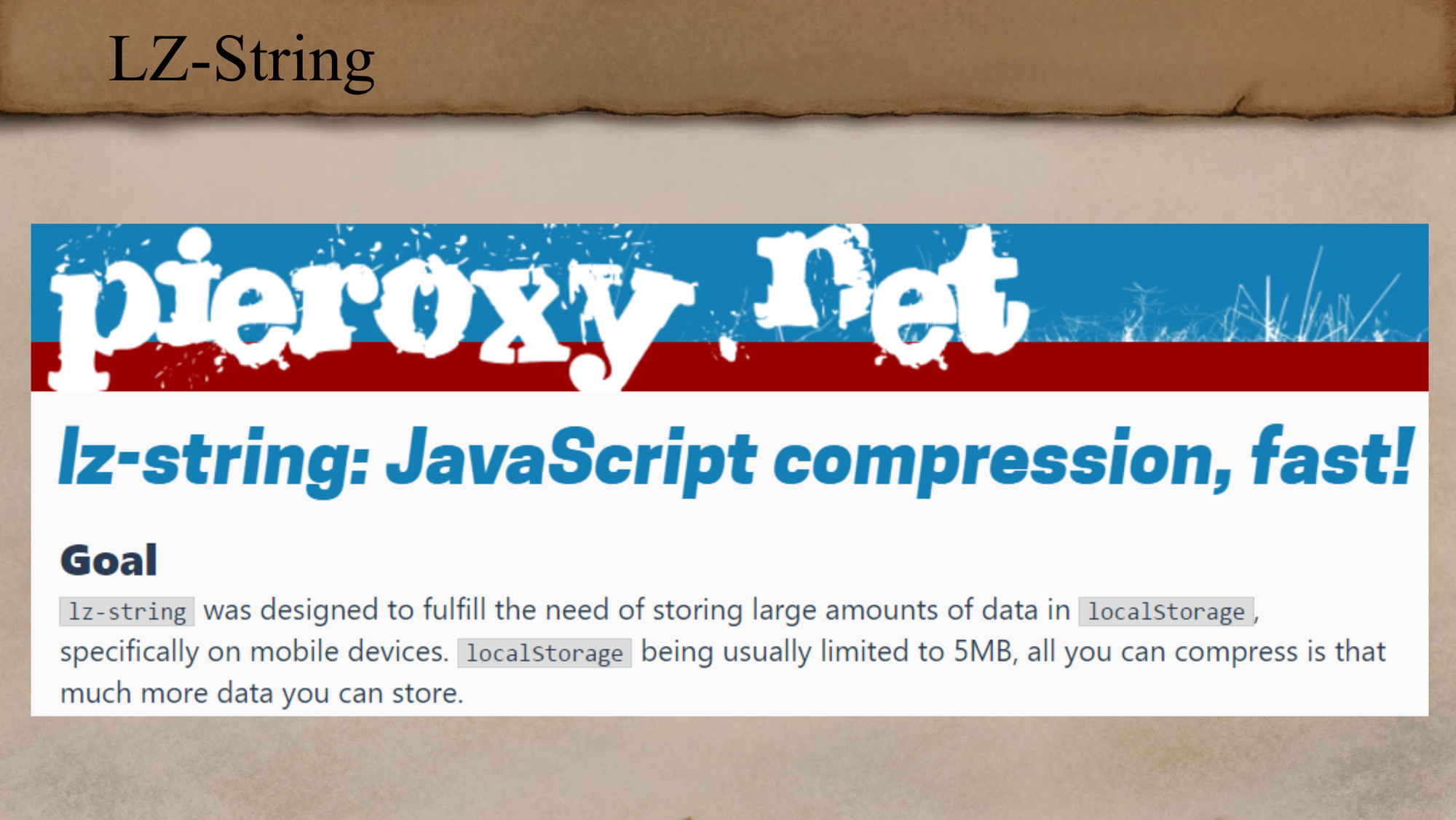
lz-string: When 5MB just isn't enough
Javascript stores things in LocalStorage in a “UTF-16-ish” way, which means if you're storing ASCII-type data, every other byte is going to be a null and you're effectively losing half the storage space. What lz-string does is compress your data and store it in high UTF-16 code points (ones that use both bytes). This is how it could get more data in there. The fun part is that this was never meant to be read literally; the code points don’t have to be assigned or even valid. That made making sense of it really fun. I've unleashed more than my fair share of curses trying to get stuff working in general with Python and Unicode, and in this case having the invalid Unicode code points definitely did not help.
Why Unicode?
### Transforming Data with CyberChef
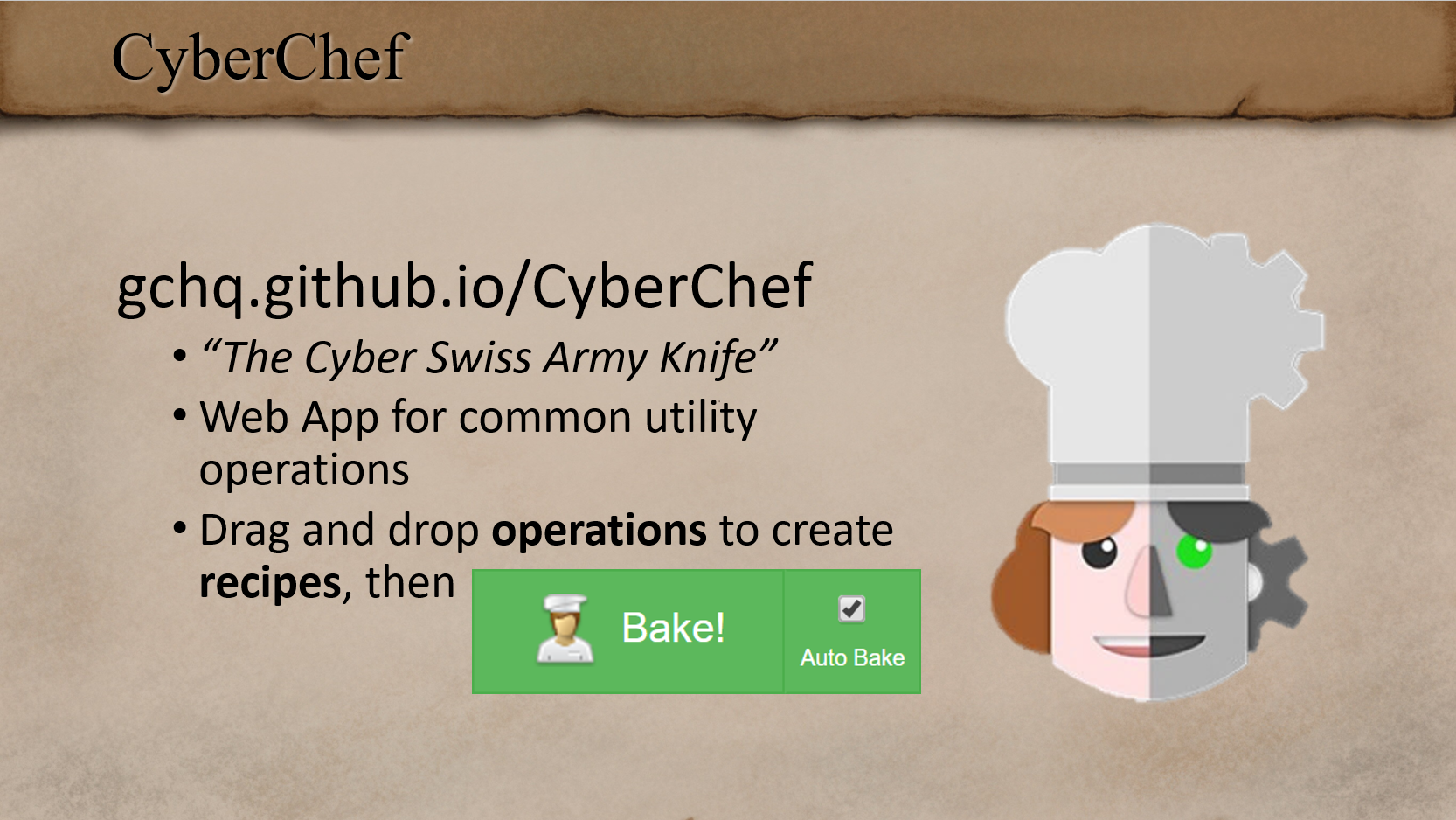
Anyway, I'm going to show you how to do this deciphering without using any programming. There's an awesome tool called [CyberChef](https://gchq.github.io/CyberChef/), released as open source by GCHQ. It consists of a lot common, simple operations that you can stitch together to make into more complex things. There's nothing in here that you can't do in the command line or a hundred other ways, but it's very easy, it's drag and drop, and it's really cool. In a past job we had an internal tool that would magically convert one thing to another and was pretty similar in concept to this. It was really helpful for just exploring things really quickly or trying to decrypt things, and it had a bunch of other operations useful in malware analysis. It was a really neat tool to have, and CyberChef is a really slick open-source version.
CyberChef: Bake!
Let’s take a look at how to use CyberChef. On the far left we have the **Operations** \- these are all the different things that CyberChef can do. They are the components of your “recipe.” You can search in the top bar for what you want; that's good because there's hundreds of different things you can do, which makes it really powerful. In the middle there's the **Recipe**, which is where you put the components and order them. Once you have the “recipe” how you want it, you can save it and then reload recipes later. This means that once you figure out how to decode something, you can easily reuse it or share it with somebody else. On the far right we have the **Input** and the **Output**. The Input is just what input data you supply. For the output, CyberChef takes the input, runs the recipe on it, and puts it in the output section. It's live too; you can see what's happening as you adjust the recipe or the input.
### CyberChef Recipe for Slack
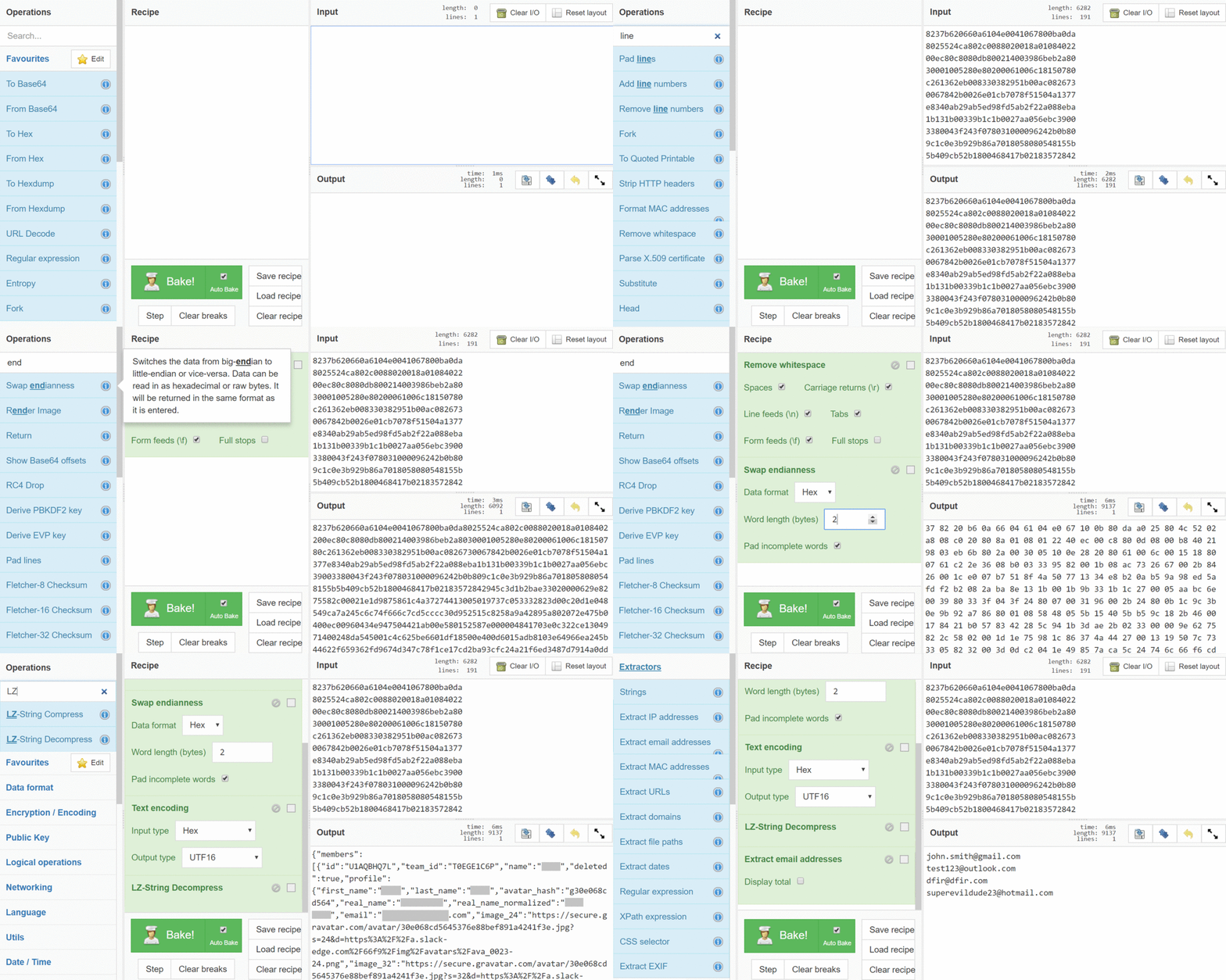
Using CyberChef on Slack data to go from raw hex bytes to extracted email addresses
Let's get started with our Slack data. The first thing that we need to do is get the raw data. I'll do this with another open-source tool - DB Browser for SQLite. I went and opened my Slack LocalStorage database and went to the _members\_data_ key. Then I needed to make one change; the mode needs to be changed from text to binary, because I want the actual binary information. Then I copied that binary data (select and Ctrl+C) and just pasted it in CyberChef in the top right **Input** section. Right now the input and output look exactly identical - that’s because there's nothing in the recipe, so there's no transformation going.
One of the first things you want to do is clean up the input text. This is the output from a hex editor-type program, with all these inserted new lines. There's a dozen ways you could get rid of them; you could copy/paste them out to Notepad++ or Sublime and remove the stuff. But hey, let's see if CyberChef can do this and save us a few seconds. I'm going to use the search for **Operations** and look for “line”. There's a result called _Remove whitespace_, so I'm just going to go ahead and drag that over and drop it into the recipe. At the bottom you'll see that in the output now there's no white space. That's pretty simple, but that's nice.
The next thing I’ve learned that I need to do (after exploring the data), is to swap the byte order. The input starts **82 37** and I want to swap that so it's **37 82** (if you're familiar, that's called the _endianness_ of the data). I want to swap every other byte, so I’m going to start searching for “end” and I'm going to find _Swap endianness_. I’ll drag it over in the recipe and then I get… something that’s not quite right. I wanted **37 82** and I have **20 b6**. If you look at the options for _Swap endianness_ in the recipe, the default is length of 4. I wanted to swap every other byte, so I’ll change it down to 2; now I have exactly what I wanted.
The next thing is I have all these nice hex bytes, but I want to get my ugly little glyph things. That means the text encoding, so I’ll start searching for “text” and I find _Text encoding_. I’ll change some options; the input is now _Hex_ the output is set to _UTF16_ … and now I have my glyphs! I can use them as my starting place for decompressing.
_If anybody's more familiar with this kind of stuff, I could have combined those last two steps. I didn't need to swap the endianness in a separate step; I could have just picked UTF-16LE for the text encoding. This is just to illustrate that there's always more than one way to do something._
Now that I have the data in the format that I want, the last thing is to decompress it. I start typing “LZ” in the search and drag over _LZ-String Decompress_. _\[This actually isn't in the GCHQ CyberChef (yet); I had to build the LZ-String functions on a fork.\]_ Now we have a nice JSON. We went from this blob of digits to a readable JSON; that's pretty slick. You can save this recipe and you can load it later or pass it off to your friends.
It looks like there is some pretty interesting stuff in there. There's some URLs and some things that look like IDs. There's also some names or email addresses. You can start doing some regex or whatever to search it, but we're already here, so maybe I can go farther with CyberChef? There's this whole section of **Extractors**, which are common things that you want to search for. There's tons of them, but let's just use email addresses as an example. I'll just drop the _Extract email addresses_ in there… and then there's the email addresses from my Slack channel! This example was pretty simple, but it shows how quickly we can go from one thing to another, and there was no typing code at all!
> Stay tuned for part 3 in the series: [LevelDB and Chrome's FileSystem](https://hindsig.ht/blog/deciphering-browser-hieroglyphics-leveldb-filesystem/).